📦
Stock, orders and inventory
Suppliers, the order template, a colour-coded "what to buy" hint, deadline reminders and entering inventory counts — step by step, from the real screens.
1
Add a supplier
The Stock → Suppliers → ➕ Add tab: name, order deadline (e.g.
The same list can also be edited in the bot —
18:00), days (<i>all</i> / <i>weekdays</i>), minimum order amount, contact, phone, a note.The same list can also be edited in the bot —
/suppliers_edit: it additionally has a minimum ORDER QUANTITY (not just an amount) and lets you disable a supplier temporarily instead of deleting it.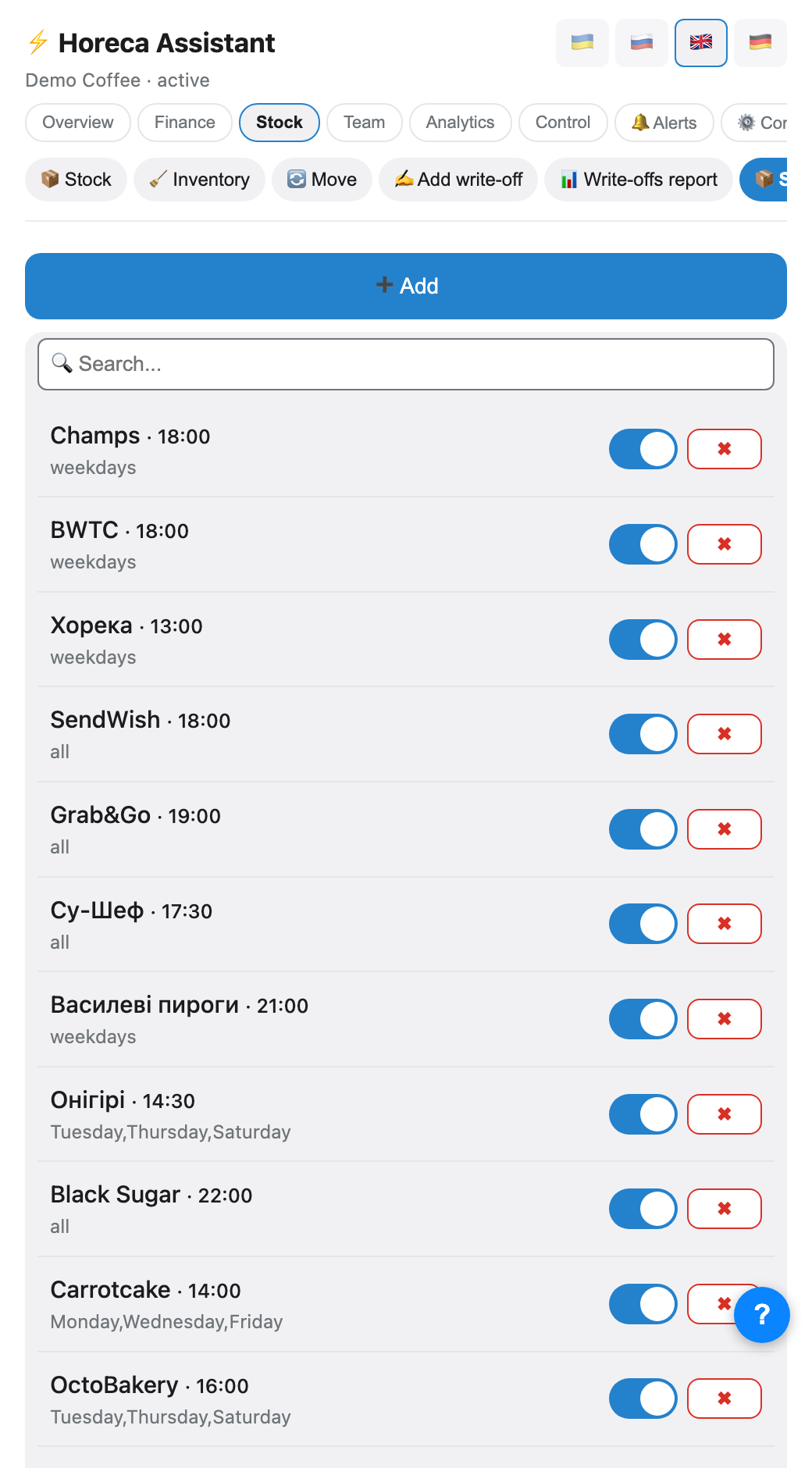
2
Automatic deadline reminder
Two hours before the deadline the bot posts on its own into the company's alert chat — not a specific venue. The message only has the supplier name, the deadline and the minimum amount/quantity — the actual item list is not computed here (that is the next step).
💡 You can turn these reminders off with the
supplier_reminders toggle in Notifications if you order on your own schedule.🤖
Horeca Assistant
🔔 Order reminder
📦 Supplier: Metro
⏰ Deadline: 18:00
💰 Minimum order: ₴1,500
📌 Urgent! Time to place the order!
📦 Supplier: Metro
⏰ Deadline: 18:00
💰 Minimum order: ₴1,500
📌 Urgent! Time to place the order!
3
Build the order template
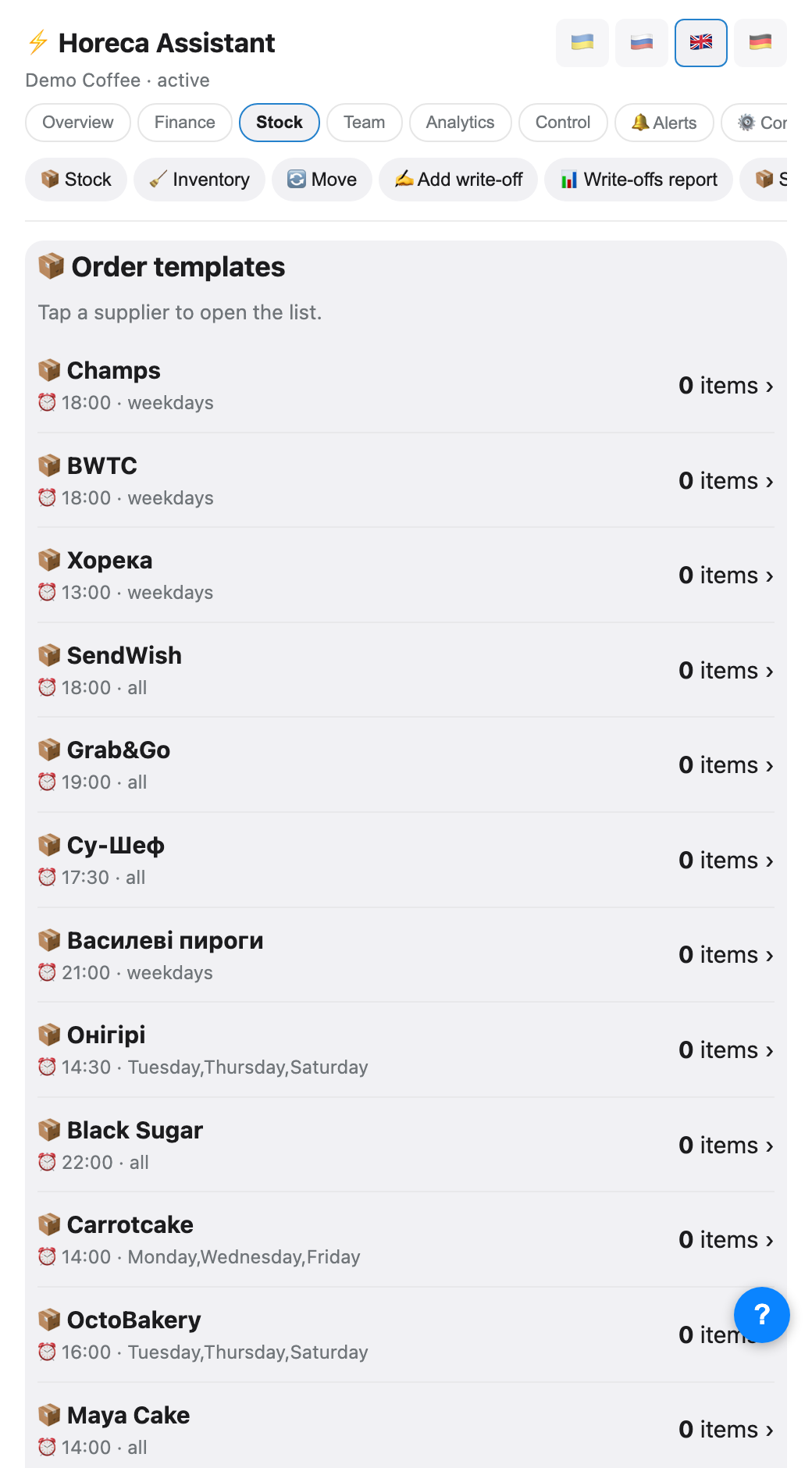
The Stock → Orders tab lists suppliers with their deadline and the number of items in the template. Tap a supplier to open the list of items you usually buy from them: add names with the text field at the bottom, remove ones you no longer need with the ✖.
This is a one-time setup per supplier — after that the bot works out quantities from this template automatically.
This is a one-time setup per supplier — after that the bot works out quantities from this template automatically.
4
A colour-coded "what to buy" hint
On the supplier screen there is a 💡 Order hint button. The bot takes your template, checks it against actual stock and consumption over the last 7 days in Poster, and shows each item in one of four colours: 🔴 under 2 days left, 🟡 2–4 days, 🟢 enough, ⚪ no match found in Poster (check the item name).
⚠️ An unmatched item (⚪) does not mean "all fine" — it means "the bot could not recognise the item by name", and that is exactly the one worth checking by eye.
🤖
App · Stock → Orders → Metro
📦 What to order from Metro
<i>Template vs stock and consumption over 7 days</i>
🔴 Order now (<2 days)
🔴 Milk 3.2% — 24L, ~1.2 days
🟡 Cutting it close (2–4 days)
🟡 Cream 10% — 6L, ~3.1 days
🟢 Still enough
🟢 Cheese — 8kg, ~9.4 days
<i>Template vs stock and consumption over 7 days</i>
🔴 Order now (<2 days)
🔴 Milk 3.2% — 24L, ~1.2 days
🟡 Cutting it close (2–4 days)
🟡 Cream 10% — 6L, ~3.1 days
🟢 Still enough
🟢 Cheese — 8kg, ~9.4 days
5
A ready-made message for the supplier
The 📝 Build order button only takes 🔴/🟡 items, works out a quantity (enough for 7 days minus what you already have) and drafts ready-to-send text: "Hello! Order (Metro): • Milk 3.2% — 40L …". The 📋 Copy and ↗️ Share buttons let you drop it straight into the chat with the supplier.
If everything is 🟢, the bot says "No order needed — stock is enough" instead of showing empty text.
If everything is 🟢, the bot says "No order needed — stock is enough" instead of showing empty text.
6
The "Stock" tab — six modes
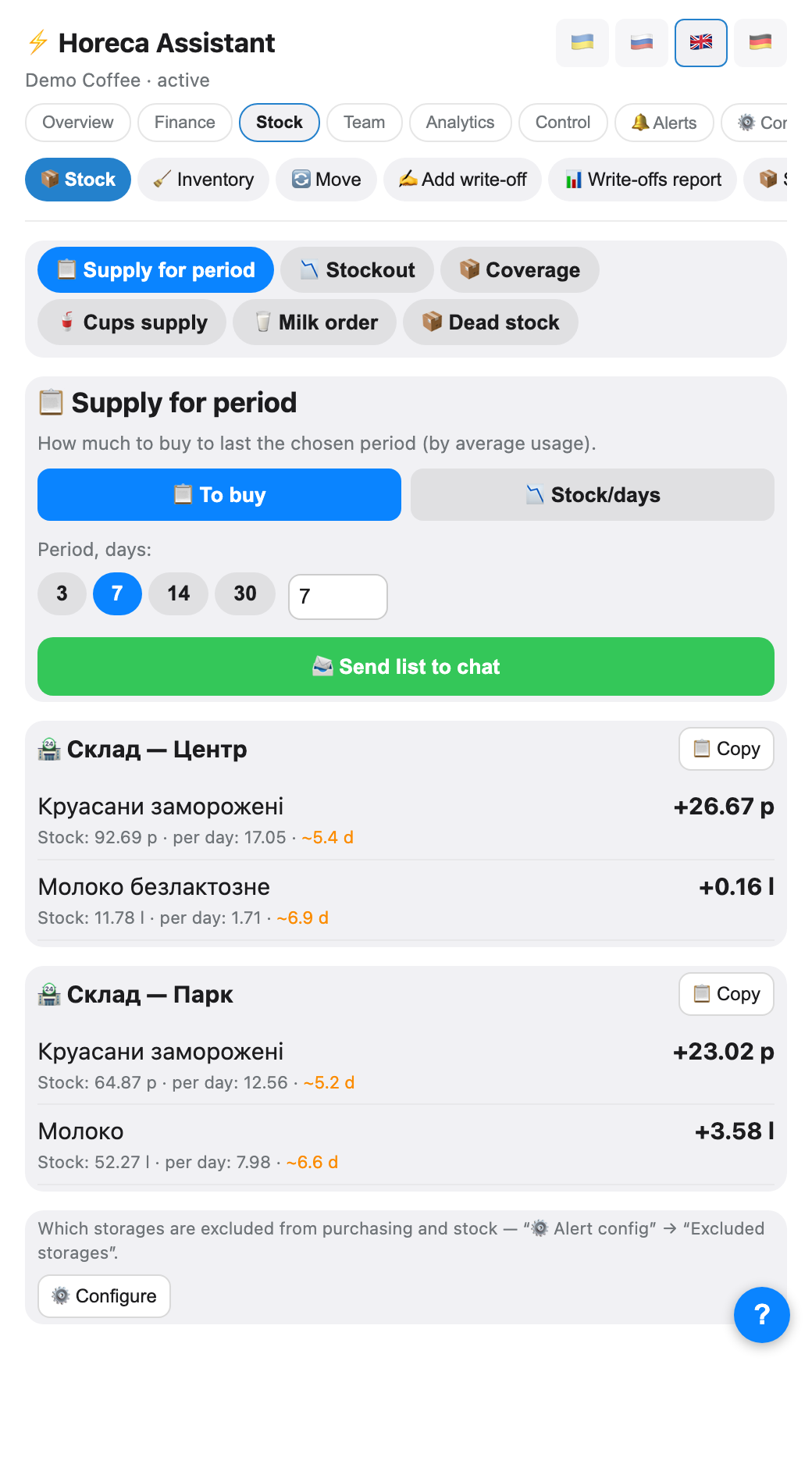
Separately from supplier orders there is a Stock → Supplies tab with a mode switcher: 📋 Order-to-cover (default — how much to buy for N days), 📉 Stock-out (what runs out soonest), 📦 Coverage (how many days current stock lasts), 🥤 Cup restocking, 🥛 Milk ordering, 📦 Dead stock.
💡 These modes are not a replacement for supplier templates — they look at the whole stock at once, without a "who sells it" link. Good for a quick overview; ordering itself is easier from the supplier screen.
7
Milk — a finer calculation
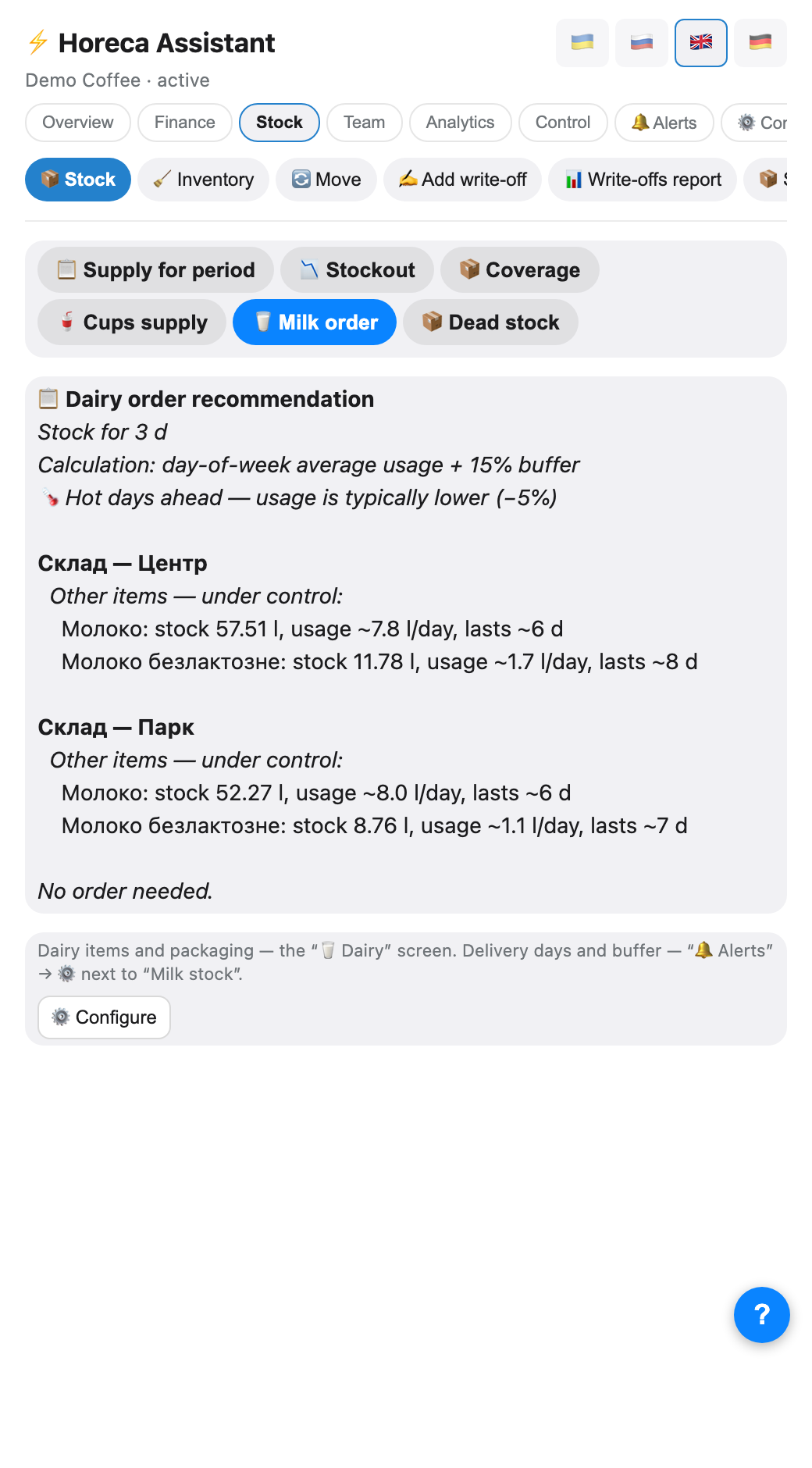
The 🥛 Milk ordering mode calculates differently from the general order tool: average consumption per day of week (Saturday ≠ Tuesday) plus a safety buffer, and it also factors in the weather forecast — if consumption over the next few days is expected below or above the norm, that adjustment shows right in the text.
💡 The list of milk items, delivery days and the safety buffer are configured under "🔔 Notifications" → ⚙️ next to "Milk ordering".
8
Inventory: two modes
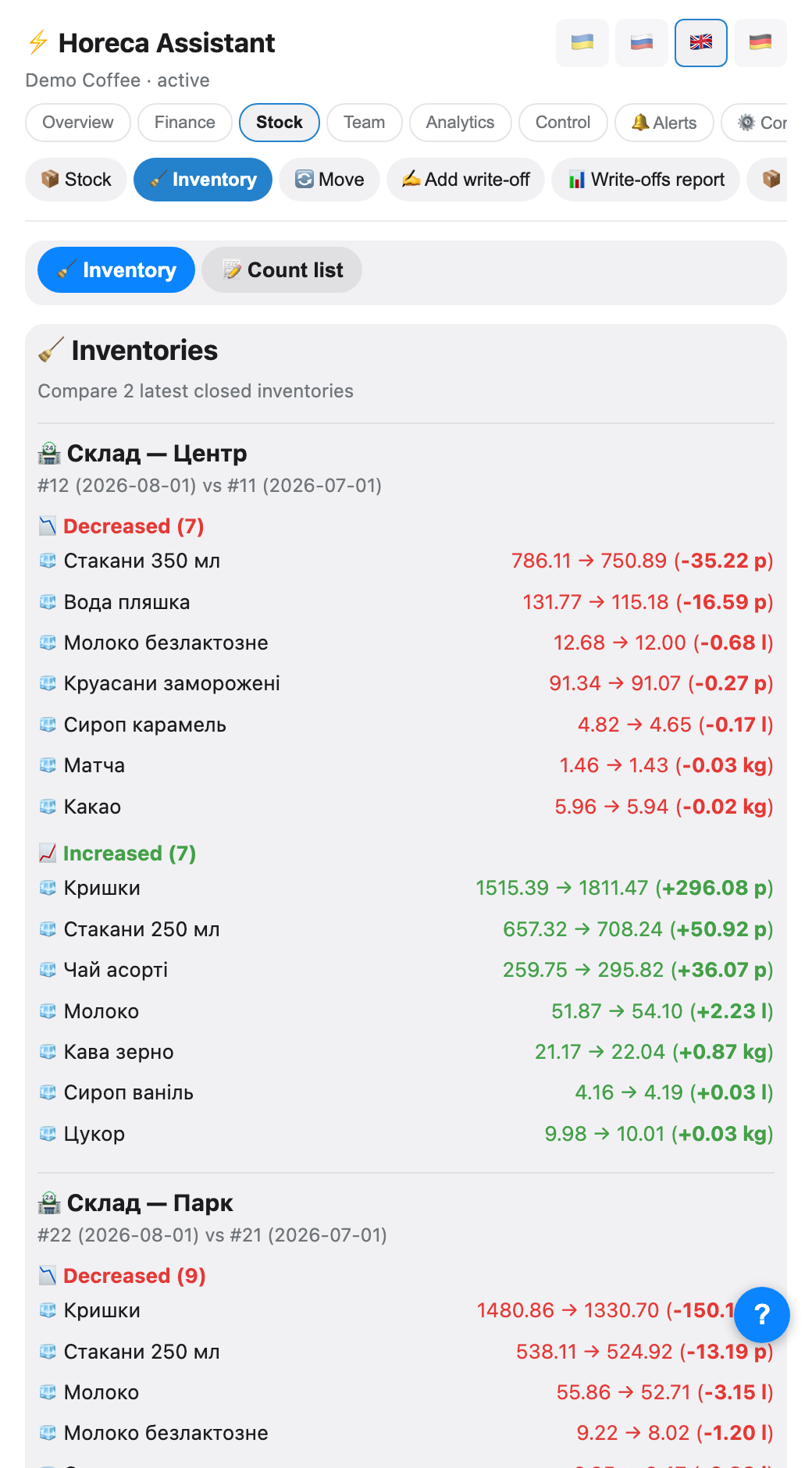
The Stock → Inventory tab has two modes depending on who is looking. The owner/manager sees 🧹 Inventory counts by default — a comparison of the last two CLOSED counts per storage: what went up, what went down.
A barista (who only has the
A barista (who only has the
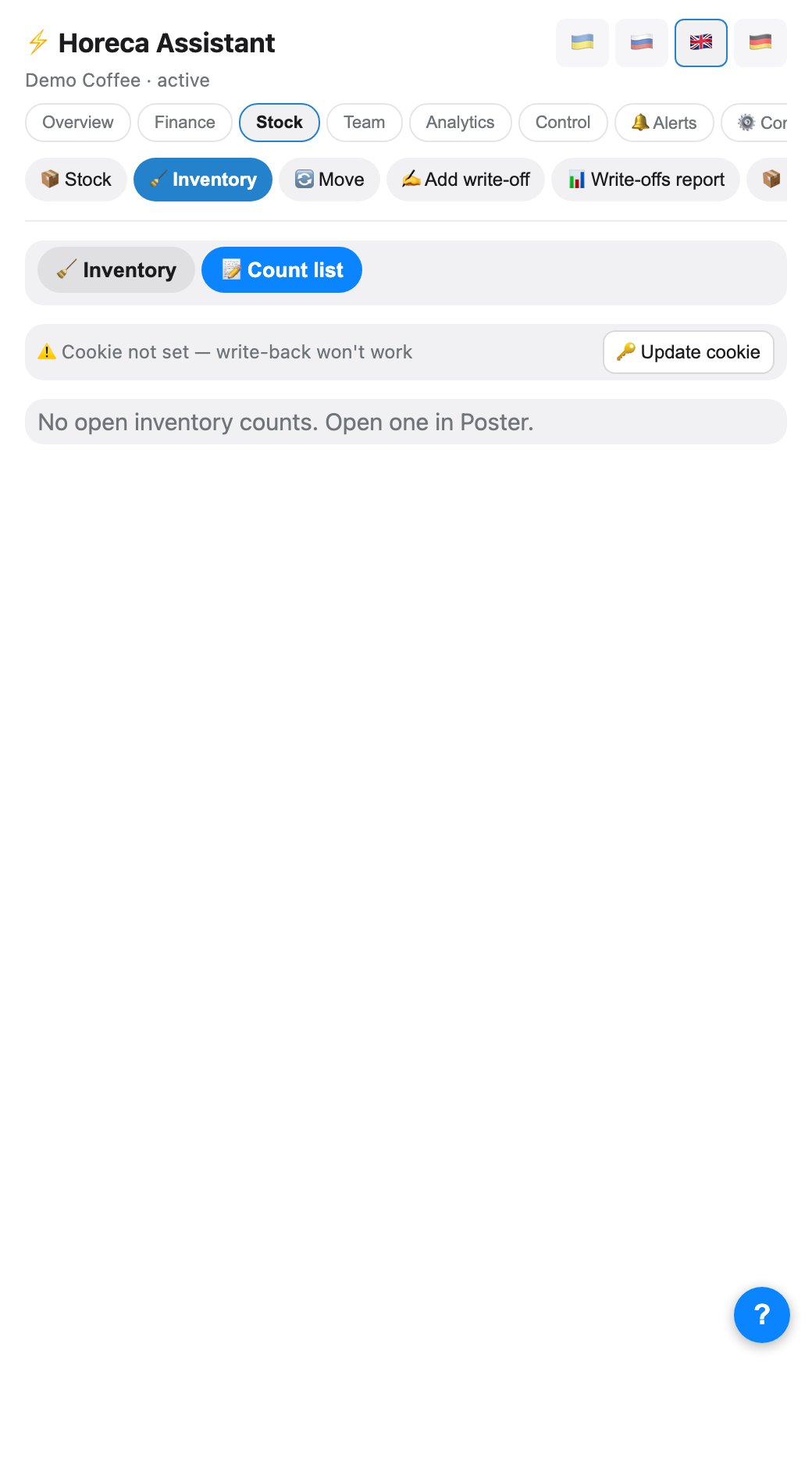
tab_inv right) lands directly in 📝 Enter counts — a form for an OPEN count in Poster, with fields pre-filled from Poster's current numbers.⚠️ Without an OPEN count in Poster, the entry form shows "no open inventory counts" — open one in Poster itself first.
9
Enter counts and write them to Poster
The 📝 Enter counts mode needs a fresh Poster back-office web cookie — otherwise writing fails (the bot shows a yellow warning and a 🔑 Refresh cookie button). After writing, the bot shows the discrepancy against what Poster had before, with a 🔄 Re-check button.
10
Getting the cookie (in the app)
The simplest way is the 🔑 Refresh cookie button right in this mode: a paste field opens.
1. Open the Poster back office in a desktop browser (not on a phone), on any page.
2. Press F12 (Mac: ⌥⌘J) → the Network tab → reload the page (F5) so requests appear.
3. Click any request in the list → a panel opens on the right → find Request Headers → the
4. Copy the value IN FULL (everything after
1. Open the Poster back office in a desktop browser (not on a phone), on any page.
2. Press F12 (Mac: ⌥⌘J) → the Network tab → reload the page (F5) so requests appear.
3. Click any request in the list → a panel opens on the right → find Request Headers → the
Cookie: row.4. Copy the value IN FULL (everything after
Cookie:) and paste it into the app field → «Save».💡 The same process also works in the bot — the
/inventory_cookie command in a DM. It uses a slightly different but equally valid method: right-click a request → Copy → Copy as cURL, then paste the whole copied text in one message — the bot extracts what it needs.⚠️ The bot checks that the text contains two specific keys —
pos_session and ssid. If they are missing (you copied only part of the Cookie: value), you get an error listing what is missing. The cookie expires over time: if writing suddenly stops working, just repeat these steps.11
Slow movers and write-offs
The 📦 Dead stock mode in "Supplies" flags items sitting around too long: for desserts it warns "check the expiry date", for everything else — "worth cutting the price before it spoils". Write-offs for a period export to CSV via
/writeoffs Downtown 01.07-15.07.FAQ
The bot suggests ordering what we already ordered
The "💡 Order hint" button recalculates from current Poster numbers every time — it does not remember that you already placed an order. Simplest fix: do not keep re-checking the same item the same day; the stock updates once the delivery arrives.
How does the bot know how many days are left?
From actual consumption over the previous 7 days and the current Poster balance (the storage movement report). If the template name does not match the Poster item name, the row shows up as ⚪ "not found" — check the spelling.
What does the minimum order amount affect?
It only shows on the supplier card and in the reminder — the bot does not use it to block or adjust the hint or the draft order; it is information for you, not an automatic rule.