🏢
How to connect your company
A three-step wizard: name, Poster token, confirming venues and storages. Then a 10-item checklist shows what is still missing.
1
Send /start to the bot
Open
@HorecaAssistantBot in Telegram and send /start. One message lists everything it does (purchasing, stock, receipt control, finance, payroll, analytics, prices, tasks, notifications) with a button to begin.🤖
Horeca Assistant
/start
👋 Hi! I am an assistant for a coffee shop on Poster.
• 📦 Purchasing — 🔴/🟡/🟢 hints, a push 2h before the deadline
• 📋 Stock and inventory — "enough for N days"
• 🧾 Receipt control — suspicious deletions
• 💰 Finance — profit and break-even
• 👥 Payroll — base + percentage + bonuses
• 🔬 Analytics, 💵 Prices, ✅ Tasks, 🔔 Notifications
Ready to connect in 5 minutes? A 14-day free trial.
• 📦 Purchasing — 🔴/🟡/🟢 hints, a push 2h before the deadline
• 📋 Stock and inventory — "enough for N days"
• 🧾 Receipt control — suspicious deletions
• 💰 Finance — profit and break-even
• 👥 Payroll — base + percentage + bonuses
• 🔬 Analytics, 💵 Prices, ✅ Tasks, 🔔 Notifications
Ready to connect in 5 minutes? A 14-day free trial.
🚀 Connect the coffee shop
2
Step 1/3: business name
This is an internal name — how the company appears in the bot and the app (e.g. "Bo Lublu" or "Urban Coffee"). With several companies, give them distinct names: the name shows up in the switcher.
3
Step 2/3: Poster API token
Get the token in the Poster back office: Access → Integrations (left-hand menu) → the "Personal integration" block (or "API") → copy the "Access token".
The bot checks the token with three Poster calls (accounts, venues, storages) and immediately reports how many venues it found. One Poster account = one company: the same token cannot be registered twice — the bot will say so.
The bot checks the token with three Poster calls (accounts, venues, storages) and immediately reports how many venues it found. One Poster account = one company: the same token cannot be registered twice — the bot will say so.
⚠️ The token only grants read access (not write) — still, never forward it into group chats. It can be revoked any time in the same Poster panel.
4
Step 3/3: confirm venues and storages
The bot lists the venues it found and tries to guess a storage for each one by name similarity. If the match is right, just tap "✅ Finish registration".
If not, the "🏭 Set up storages" button opens the storage list, where tapping a storage cycles it between venues (none → venue 1 → venue 2 → … → none). Pick the right one and save.
If not, the "🏭 Set up storages" button opens the storage list, where tapping a storage cycles it between venues (none → venue 1 → venue 2 → … → none). Pick the right one and save.
⚠️ A wrong storage is not a small thing — stock, write-off and even till-reconciliation reports depend on it. If your Poster storage names do not resemble the venue names, make sure to check and fix this here.
5
What you see right away
The final message gives a 4-step plan right in the text — rates, staff, chats, team — plus buttons for Payroll guide / Rates / Staff / Roles / Checklist / Open the app. With more than one venue it separately warns that task and shift chats must be bound for EACH venue.
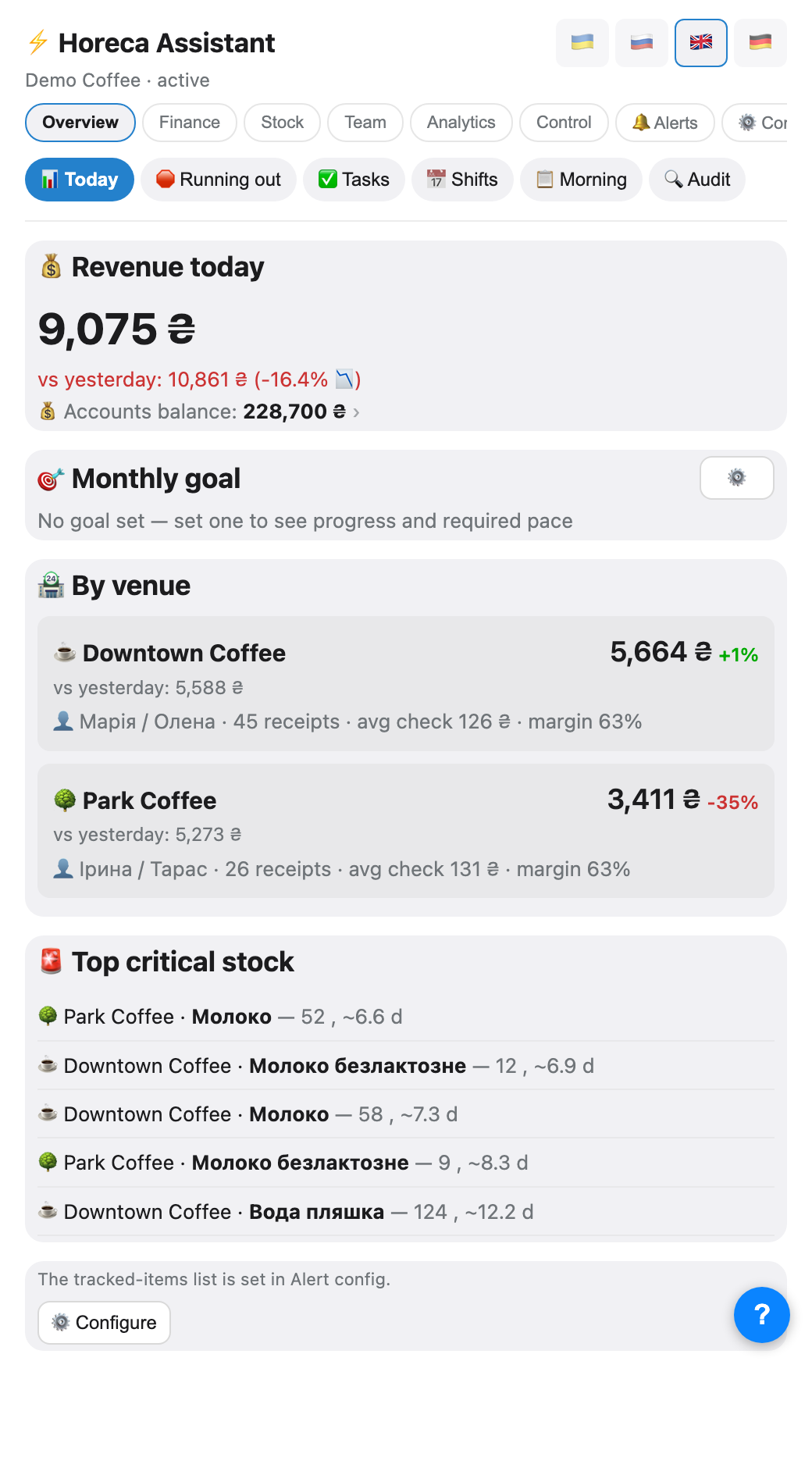
After that, open the app — the home screen already shows today's revenue, a comparison with yesterday, a per-venue breakdown and the top critical stock items.
After that, open the app — the home screen already shows today's revenue, a comparison with yesterday, a per-venue breakdown and the top critical stock items.
6
The setup checklist (10 items)
The
An item is not marked done until its condition is literally met — this is not a "do it once and forget" list, it is a live state.
/setup command (or ⚙️ "Setup" in the app) shows what is already done: venues confirmed, safe accounts linked, payroll rates reviewed (specifically reviewed — the default 600/5% numbers do not count as done until you open and save /est_rates), staff added, team and roles, the alert chat, task and shift chats for ALL venues, suppliers, trial status.An item is not marked done until its condition is literally met — this is not a "do it once and forget" list, it is a live state.
💡 The item people get stuck on most is "payroll rates reviewed" — just open
/est_rates, look at the numbers and save, even if you change nothing.7
A second company
Each company has its own Poster account and token. There are two ways to add one:
• in the bot —
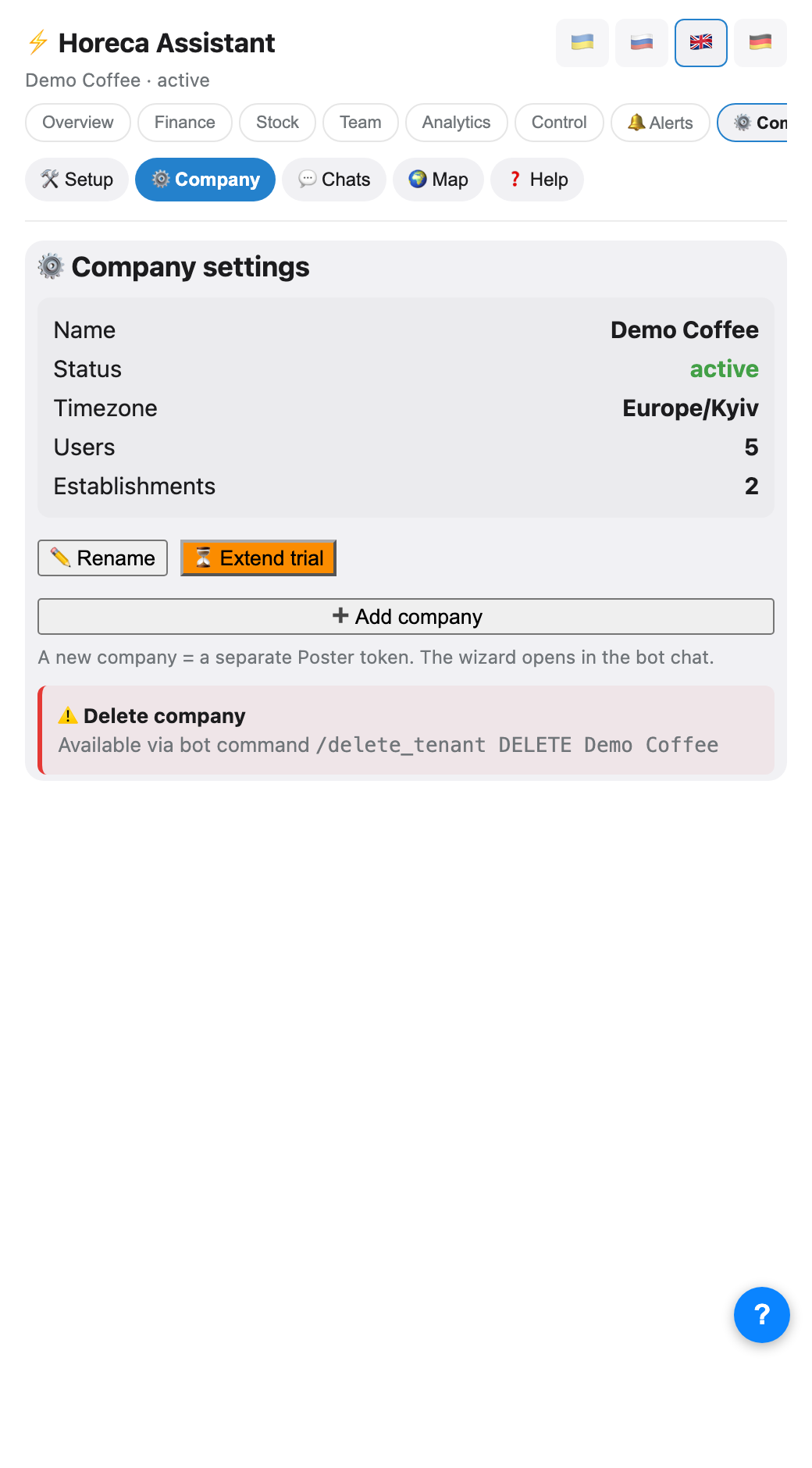
• in the app — ⚙️ «Company» → «➕ Add company» (the bot sends the wizard to your DM).
Switch between companies with
• in the bot —
/new_company, or the «➕ Add company» button in /my_tenants;• in the app — ⚙️ «Company» → «➕ Add company» (the bot sends the wizard to your DM).
Switch between companies with
/default_company (formerly /switch_tenant) or the dropdown at the top of the app.💡 A new company shows up in the app dropdown after you reopen it — the list is loaded at startup. For the "which company?" picker and shared rates across companies, see the dedicated guide.
FAQ
Where exactly do I get the Poster token?
Poster back office → Access → Integrations → the "Personal integration" block (or "API") → "Access token". You need a token with read access to the venue data.
I have 5 coffee shops on one Poster — is that 5 companies?
No. One Poster account = one company, and the shops inside it are venues. You only need a separate company when it has its own separate Poster account.
The bot found no venues after the token
The token is valid, but the Poster account has no access.getSpots at all — check in Poster itself that the venues exist and are active. If it is a different error (not "no venues"), the bot shows Poster's exact error text right in the chat.