🧰
Owner tools: texts, event log, alert history, map
Four "not everyday" screens that answer "who changed this?", "what has the bot been sending?", "can I rename that button?" and "where are my venues anyway?".
1
💳 Paying the subscription: /pay or the web page
Two ways, both lead to the same Plata by Mono invoice.
1. In the bot:
2. On the site: horecabot.pro/pay.html — enter the contract number (it is in Company → Subscription, looks like
A paid period is 30 calendar days per month. Paying early does NOT shift the date: the new period queues after the current one, so early payment is safe. The payment reference carries the contract number and exact period dates.
1. In the bot:
/pay — a card with plans, price and location limit; pick a plan, then the term, and the bot sends the payment link.2. On the site: horecabot.pro/pay.html — enter the contract number (it is in Company → Subscription, looks like
PB-2026-0002), pick a plan and pay. Handy when an accountant pays without bot access.A paid period is 30 calendar days per month. Paying early does NOT shift the date: the new period queues after the current one, so early payment is safe. The payment reference carries the contract number and exact period dates.
💡 Paying for the same plan again extends the TERM, it does not add locations. The number of locations comes from the plan: Starter one, Pro up to three, Business unlimited.
2
⬆️⬇️ Changing plan: unused days are not lost
In
⬆️ Up (e.g. Starter → Pro): the bot converts your unused days into money and subtracts it from the new plan price — you pay the difference. A new 30-day period starts on the payment day, and the calculation is shown BEFORE you pay.
⬇️ Down (Pro → Starter): nothing to pay, the remainder becomes MORE days on the cheaper plan (its daily rate is lower). The bot will not let you move to a plan that cannot hold your locations — disconnect the extra ones first.
Skipping a level is fine: Starter straight to Business and back.
/pay, below the term buttons, there are plan changes.⬆️ Up (e.g. Starter → Pro): the bot converts your unused days into money and subtracts it from the new plan price — you pay the difference. A new 30-day period starts on the payment day, and the calculation is shown BEFORE you pay.
⬇️ Down (Pro → Starter): nothing to pay, the remainder becomes MORE days on the cheaper plan (its daily rate is lower). The bot will not let you move to a plan that cannot hold your locations — disconnect the extra ones first.
Skipping a level is fine: Starter straight to Business and back.
3
↩️ Refund for unused days
The ↩️ Refund button lives in
How it works:
1. Tap the button — the bot shows the amount: unused days × daily rate, rounded down to the hryvnia.
2. Confirm. We warn that access will end BEFORE you confirm, not after.
3. The request comes to us. The card refund is done on our side (technically a partial invoice cancellation), so the decision is not automatic.
4. Once approved, the money goes first and access is cut at the end of the approval day.
No button means there was no payment yet or the period is already over — nothing to refund.
/pay — at the bottom of the card, below the term buttons and plan changes. It appears ONLY when there is something to refund: a successful payment and unused days left.How it works:
1. Tap the button — the bot shows the amount: unused days × daily rate, rounded down to the hryvnia.
2. Confirm. We warn that access will end BEFORE you confirm, not after.
3. The request comes to us. The card refund is done on our side (technically a partial invoice cancellation), so the decision is not automatic.
4. Once approved, the money goes first and access is cut at the end of the approval day.
No button means there was no payment yet or the period is already over — nothing to refund.
⚠️ A refund ends access at the close of the approval day — your team loses the bot. If you only want a cheaper plan rather than leaving, choose ⬇️ downgrade: the money is not returned but becomes extra days.
4
🌐 Texts: the Mini App copy editor
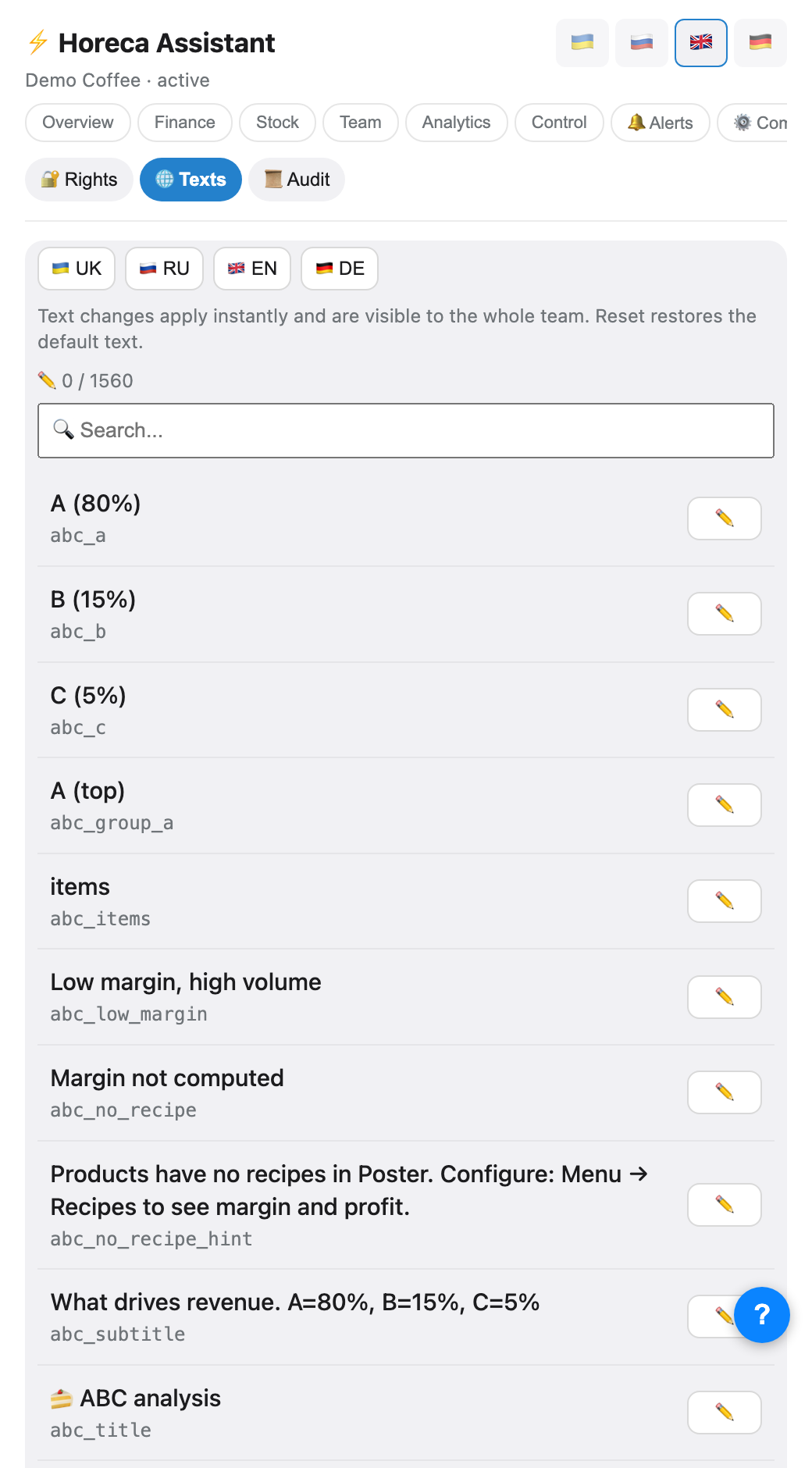
The 🔐 Access & texts → 🌐 Texts group (owner/admin only): the full list of app strings with search, per each of the 4 languages (🇺🇦🇷🇺🇬🇧🇩🇪 — switcher on top). Tap ✏️ and write your own wording over the default: "Till" instead of "Revenue", or your chain's name in a heading — go ahead.
Edits apply live, with no release, and the whole team sees them. The counter at the top shows how many strings are overridden; each can be reset back to the default.
Edits apply live, with no release, and the whole team sees them. The counter at the top shows how many strings are overridden; each can be reset back to the default.
💡 An override affects only your company — other customers keep the stock texts. Edits are per-language: rewriting the Ukrainian string leaves the Russian one untouched.
5
📜 The event log: who did what
The Access & texts → 📜 Audit tab (or the
It answers "why is the latte price suddenly different?" — open the log and see who changed it and when.
/audit command in the bot): a timeline of significant actions in the company — time, action, who. Recorded events include: 💰 a product price change, ✏️ shift edits and barista reassignment, ➕/➖ shift expenses, ✔️ task closure, 🎚 threshold changes, ✅ accepted invitations, 🚫 member removal, ✏️ company rename and 🗑 deletion, ⏳ trial extension.It answers "why is the latte price suddenly different?" — open the log and see who changed it and when.
⚠️ Only the owner and admin see the log — same as payroll reports. A manager cannot open it even with full
tab_finance.6
📜 Alert history: what the bot has sent
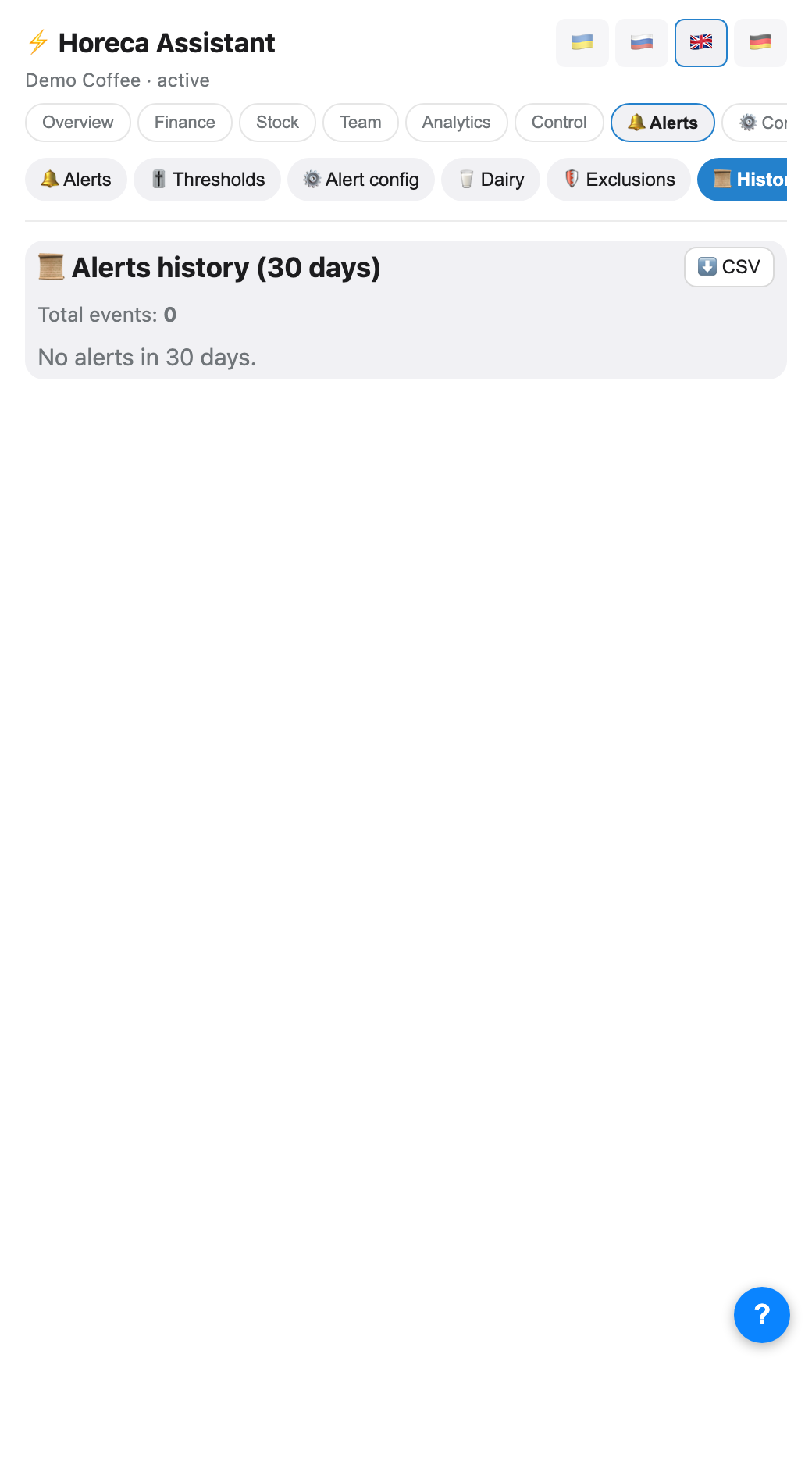
The Notifications → 📜 History tab: every alert firing over 30 days, grouped by type and venue — the type, how many times, and when last. A tap expands the per-day breakdown; for suspicious receipts and refunds a day drills further down to the actual receipts. The ⬇️ CSV button exports the whole list.
Why it exists: "the bot sent something but it is lost in the chat" and "is that alert even working?" — here you see both the fact and the frequency.
Why it exists: "the bot sent something but it is lost in the chat" and "is that alert even working?" — here you see both the fact and the frequency.
7
🌍 The venue map — and why it needs addresses
The Company → 🌍 Map tab: every venue on an OpenStreetMap view, each with its 30-day till and receipt count. The ✏️ button (owner only) sets the address as plain text — the bot geocodes it itself, no coordinates to type.
The address is not cosmetic: the venue's coordinates drive the weather adjustment and the air-raid factor in the forecasts. Without an address those factors are silently skipped.
The address is not cosmetic: the venue's coordinates drive the weather adjustment and the air-raid factor in the forecasts. Without an address those factors are silently skipped.
FAQ
I rewrote a text but the bot still shows the old one
The "🌐 Texts" editor only affects the app (Mini App). The bot's own message texts are a separate system and cannot be edited from here.
How long are the log and alert history kept?
The log screen shows the latest 20 events (
/audit 100 in the bot raises it to 100), the alert history covers 30 days. For a longer memory, export the alert-history CSV — it downloads locally and stays with you.The bot could not find the venue address
Try a fuller address in the local language: "Kyiv, Khreshchatyk St 22" geocodes better than just "Khreshchatyk". After saving, the coordinates show right in the venue row — check the pin landed where it should.