👥
How to add your team
One «Staff» screen covers bot access, the payroll card and the shift roster. Step by step with screenshots below.
1
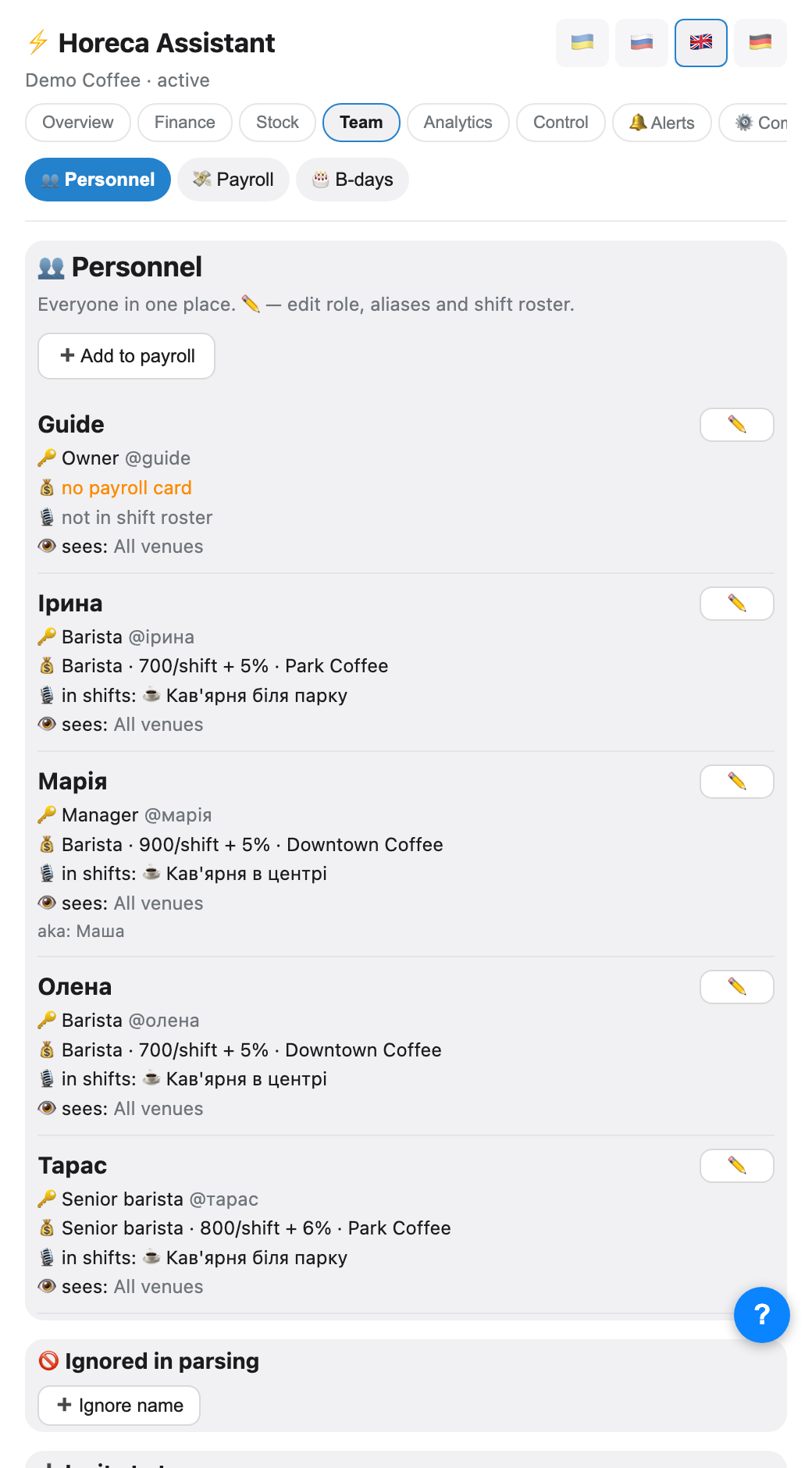
Open «Team → 👥 Staff»
This is the main people screen. Each person shows: 🔑 bot access (role and username), 💰 payroll card (rate, percentage, venue), 🎙 whether shifts recognise them, 🎂 their birthday, and — if the company has more than one venue — 👁 which venues they can see.
Anything missing is highlighted in colour — that is exactly what to fill in.
Anything missing is highlighted in colour — that is exactly what to fill in.
2
Create an invite link
At the bottom of the same screen is «+ Invite to team»: pick the role, and for baristas also the venue(s) — tick several checkboxes or pick «all» if the person works across multiple locations — then tap «🔗 Create link».
The venue matters: the link binds the person to that shop (or shops) and to the shift roster right away, so you do not have to add them again by hand.
The venue matters: the link binds the person to that shop (or shops) and to the shift roster right away, so you do not have to add them again by hand.
3
Send the link to the person
Next to the created code there are two buttons: 📤 Share (opens the Telegram chat picker and sends a ready-made card) and 📋 Copy.
The person taps the button in the card and joins with the right role. The code is valid for 24 hours; an extra code can be removed with the ✖.
The person taps the button in the card and joins with the right role. The code is valid for 24 hours; an extra code can be removed with the ✖.
🤖
Chat with the employee
🔑 Team invitation
Role: barista
Tap the button below to join. The link is valid for 24 hours.
Role: barista
Tap the button below to join. The link is valid for 24 hours.
➕ Join
4
Check what the role can do
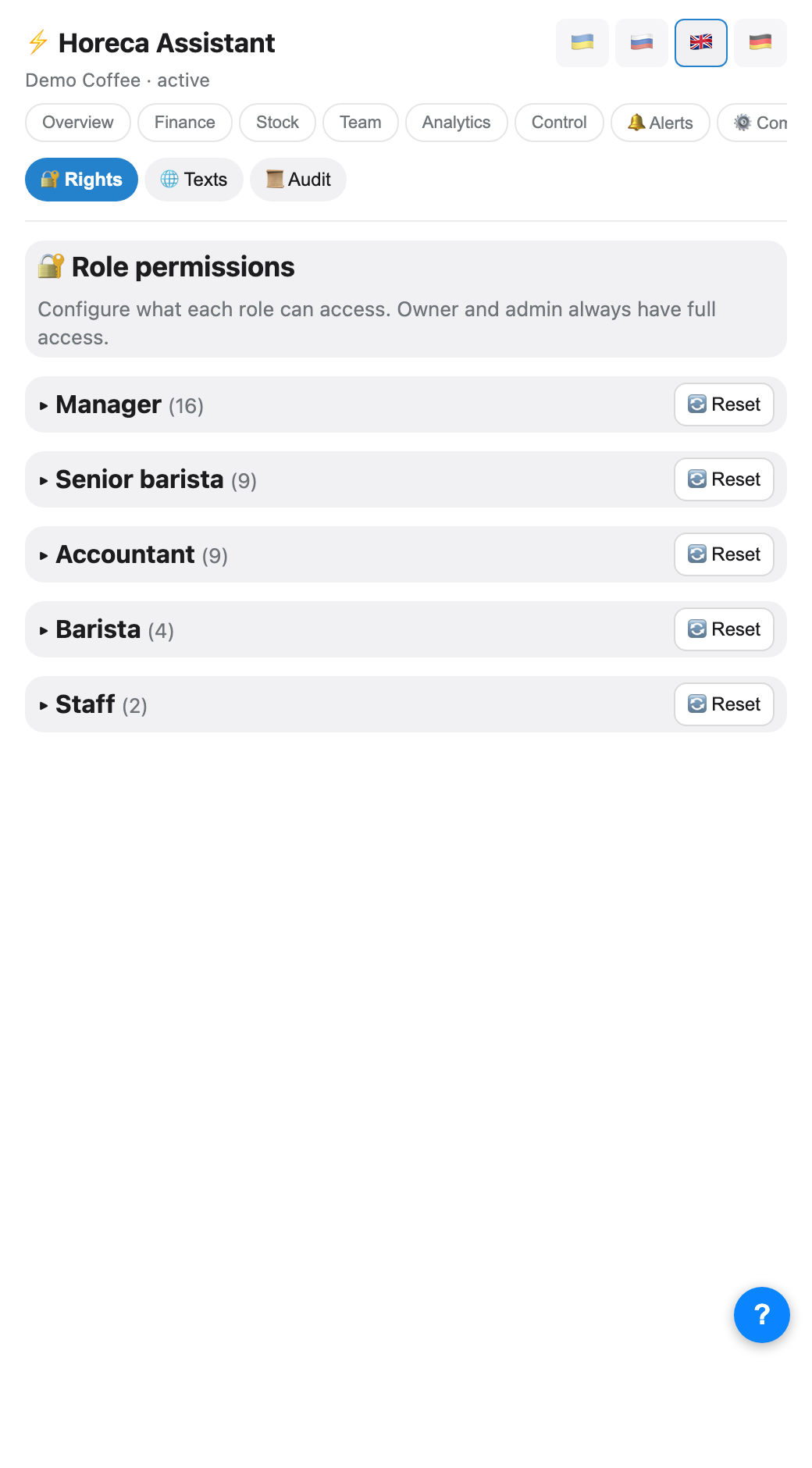
The «Role permissions» tab (owner only) has one section per role: manager · accountant · senior_barista · barista · custom (owner and admin are not listed — they always have full access, that cannot be reduced). Tapping a role name expands its section, with a "(N)" counter showing how many rights are already on.
Inside are two toggle blocks: «Visible tabs» (which screens the role sees in the app) and «Actions» (what it can EDIT — prices, suppliers, team, thresholds…). Every toggle saves instantly, no separate «Save» button. All five role names can be renamed for your company — the field for that sits above the toggles.
Inside are two toggle blocks: «Visible tabs» (which screens the role sees in the app) and «Actions» (what it can EDIT — prices, suppliers, team, thresholds…). Every toggle saves instantly, no separate «Save» button. All five role names can be renamed for your company — the field for that sits above the toggles.
💡 Anything you changed from the default gets a grey «overridden» note — so you can see where you already stepped in versus where a role still runs on standard rights. The 🔄 Reset button next to a role's name reverts all its rights to default in one tap.
Simple rule: least privilege by default. When in doubt, do not grant finance access.
Simple rule: least privilege by default. When in doubt, do not grant finance access.
5
Fill in the payroll card
Bot access and payroll are different things. A barista may never use the bot, but to be included in payroll they need a card: name, per-shift rate, percentage, venue.
Tap ✏️ on a person's row — rate, role, aliases and roster live there. A personal rate overrides the venue rate.
Tap ✏️ on a person's row — rate, role, aliases and roster live there. A personal rate overrides the venue rate.
⚠️ The name on the card must match how the person is written in shift reports. Otherwise the shift is counted but the person is missing from payroll.
6
Add name aliases
People write names differently: «Maria», «Masha», «Masha B.». Add the variants as aliases — the list shows them as <i>«also: …»</i> and the bot maps them to one person.
This is the most common reason for «the shift is there but payroll skipped the person».
This is the most common reason for «the shift is there but payroll skipped the person».
7
Who can see which venues
If the company has several venues, the ✏️ panel for each person (except owner and admin — they see everything) shows an "All venues" checkbox with a list of specific venues underneath. Untick "All" to pick venues manually, then "💾 Save access".
This affects everything: which venues the person sees in reports, cash reports, stock. An empty set (no checkbox ticked) means the person sees nothing at all — that is intentionally possible, but looks like a bug if you forget it.
This affects everything: which venues the person sees in reports, cash reports, stock. An empty set (no checkbox ticked) means the person sees nothing at all — that is intentionally possible, but looks like a bug if you forget it.
⚠️ A forgotten empty venue set is the most common reason for "the person logged in and the app is empty".
8
Put the person on the schedule
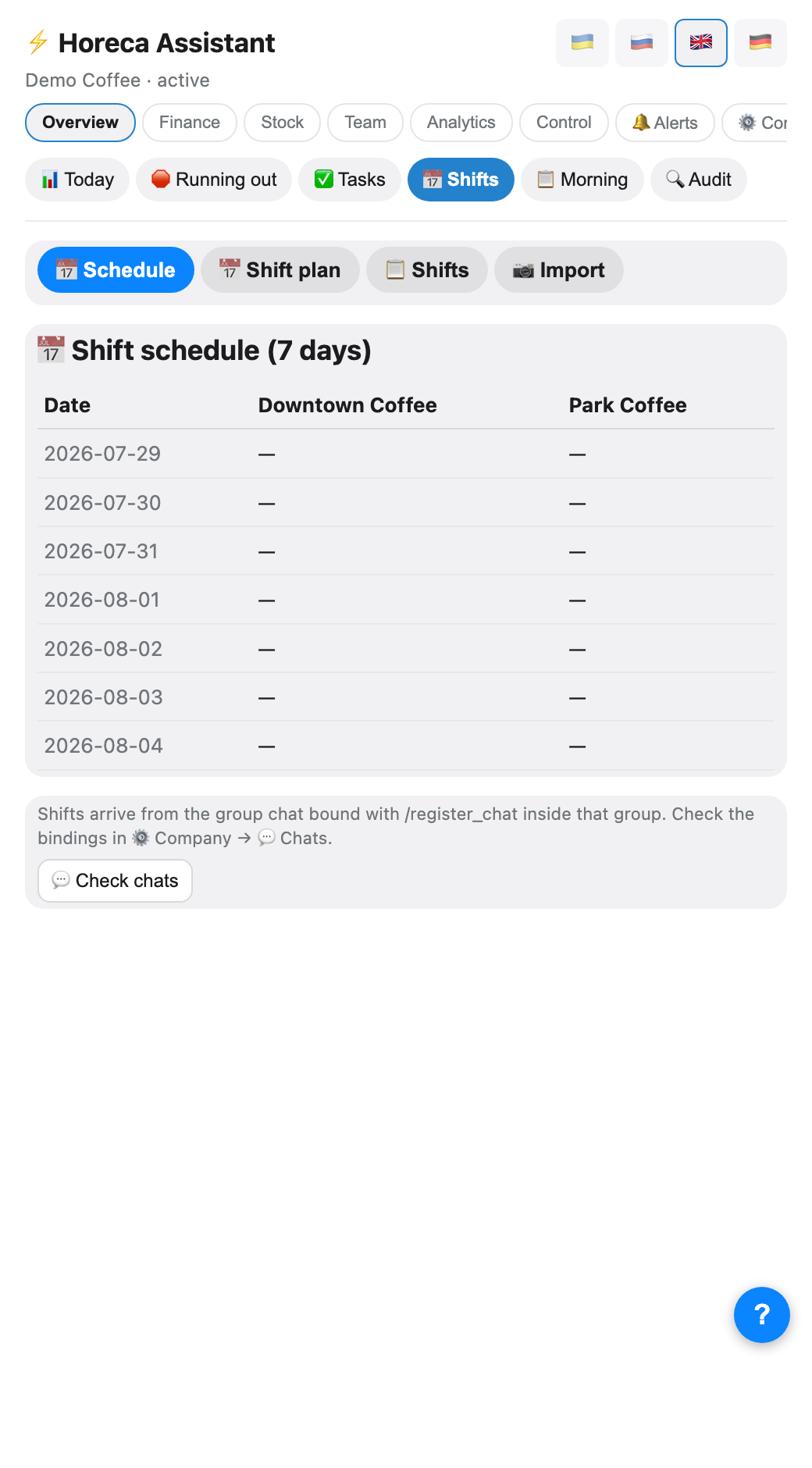
Once the person is in the roster you can schedule them: Overview → 📅 Shifts. The bot reminds them in the evening about tomorrow and warns the owner if a day has nobody assigned.
9
When someone leaves
In the bot
/revoke removes bot access only. To remove someone completely (access + payroll + schedule + aliases + birthday) use /remove_employee or «🚫 Remove completely» in the app.⚠️ The bot cannot delete messages it already sent and does not remove the person from Telegram groups — revoke groups and Poster access separately.
FAQ
The person joined but is missing from payroll
Access and payroll are separate lists. Open «Staff» and check the 💰 line: if it says «no payroll card», fill it in via ✏️.
Can I grant access without payroll?
Yes. A manager or accountant only needs the invite — no payroll card required. And the other way round: a barista can be paid without any bot access.
How many people can I add?
There is no limit — add the whole team, each with their own role.